



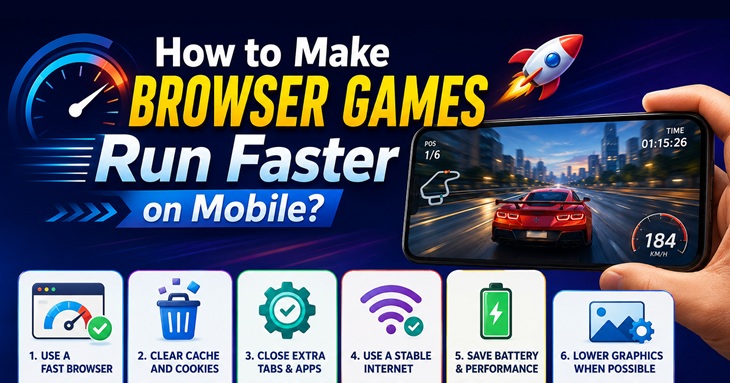
How to Make Browser Games Run Faster on Mobile?
Browser games are convenient because you don't need to download a large app or install anything before playing. Open your browser, load the game and you're ready to go. The trouble starts when a game that runs smoothly on a computer begins to stutter, freeze or respond slowly on a phone.
That doesn't always mean your phone is too old. Browser gaming performance depends on several things, including the browser, available memory, graphics settings, internet connection, heat and how well the game itself has been optimised.
The good news is that several simple changes can make a noticeable difference.
Start with Your Browser:
Before changing complicated settings, look at the browser.
Having a large number of tabs open can leave less memory available for your game. Video-heavy websites and other apps running in the background can make the situation worse.
Before starting a demanding browser game:
Close unused tabs
Shut down unnecessary apps
Restart the browser if it has been running for a long time
Keep your browser updated
Avoid running several demanding apps at once
It sounds basic, but on a phone with limited memory, these small changes can help.
Check Whether Your Internet Connection Is Causing Lag:
A weak connection can make an online game feel slow, but internet speed isn't responsible for every type of lag.
If characters are moving smoothly but your actions take longer to register, the connection could be the issue. If the whole game looks choppy, the phone may be struggling to render it.
A simple distinction helps:
Delayed actions: Check your connection.
Choppy graphics: Check performance and graphics settings.
Freezing or crashes: Check memory, browser issues and device temperature.
Performance getting worse over time: Check for overheating.
Finding the actual problem is much better than changing everything at once.
Lower the Graphics Settings:
If the game offers graphics options, start there.
High-quality shadows, particles, reflections and other visual effects can put extra pressure on a phone's processor and graphics hardware. A desktop may handle them comfortably, while a mobile device has to work harder and manage battery consumption at the same time.
Try lowering:
Resolution
Shadow quality
Texture quality
Particle effects
Reflections
View distance
You don't have to put everything on the lowest setting. Reduce one or two options first and see whether the game feels better.
Don't Let Your Phone Overheat:
Heat can quietly ruin a gaming session.
A phone may run a game perfectly for the first 15 or 20 minutes and then start slowing down. If the device becomes too warm, it may reduce performance to keep temperatures under control.
Try to avoid playing demanding browser games:
In direct sunlight
Under blankets or pillows
Inside a thick case if the phone is already getting hot
While the device is already overheating
If your phone feels unusually warm, take a short break and let it cool down.
Be Careful with Battery-Saving Modes:
Battery-saving features are useful when you need your phone to last longer, but some devices reduce performance when these modes are enabled.
If a game suddenly becomes slower after turning on power saving, check the phone's battery settings. You may find that performance restrictions are being applied.
You don't need to disable battery-saving features permanently. Just understand that there can be a trade-off between battery life and gaming performance.
Touch Controls Aren't Always the Problem:
Sometimes the game itself is running well, but the controls make it feel sluggish.
Virtual buttons can be awkward in fast-paced games because your fingers cover part of the screen. Racing, fighting and platform games can be particularly difficult when several controls need to be used quickly.
If the game supports controllers, try one.
A physical controller can make certain browser games much easier to handle, especially when analogue movement or several buttons are involved. But remember that controller support depends on the individual game.
Give Your Browser a Fresh Start:
If one particular game has started behaving strangely, reload it before doing anything more complicated.
You can also try:
Closing the game completely.
Closing other browser tabs.
Restarting the browser.
Checking for browser updates.
Trying the game in another supported browser.
Clearing cached data can sometimes help with website-specific loading problems, but it isn't a magic performance booster. If everything else works normally and only one game has problems, the issue may be with that game's code or server.
The Game Developer Has a Big Role Too:
Not every performance problem can be fixed from the player's side.
A browser game needs to be built with different devices in mind. Efficient JavaScript, sensible image sizes, optimised graphics and appropriate use of visual effects can make a major difference on mobile.
Good games should also give players options.
A low, medium and high graphics setting can allow the same game to work across a wider range of phones. This is particularly important because not every player is using a flagship device.
A Quick Routine Before You Start Playing:
If a browser game feels slow, don't immediately assume you need a new phone.
Try this first:
Close unused apps and tabs
Check your connection
Lower graphics quality
Turn down visual effects
Keep the browser updated
Check the phone's temperature
Disable performance-limiting battery modes when appropriate
Restart the browser
Try another browser if necessary
Usually, one or two of these steps will tell you where the problem is.
Frequently Asked Questions (FAQs)
1. Why are browser games slow on my phone?
Several things can cause it, including high graphics settings, limited memory, overheating, browser problems and poor connectivity. The first step is to identify whether you're experiencing visual stuttering or delayed online responses.
2. Does faster internet improve browser game performance?
It can improve loading and reduce online delays, but it won't necessarily increase the game's frame rate. If the graphics are stuttering, the phone's hardware or the game's optimisation is more likely to be responsible.
3. Should I clear my browser cache to make games faster?
It can help if you're experiencing a particular loading or website problem, but clearing the cache regularly isn't necessary for normal gaming. Try restarting the browser first.
4. Can a controller improve mobile browser gaming?
Yes, provided the game supports controller input. Physical buttons can be more comfortable for racing, platform and action games, but a controller won't solve performance problems such as overheating or low frame rates.
Final Thoughts:
Making browser games run better on a phone doesn't always require new hardware. Often, the fix is much simpler: close unnecessary tabs, reduce graphics, keep the device cool and make sure your browser isn't struggling with other tasks.
The most useful approach is to find out what is actually causing the slowdown before changing settings randomly.
Once you know whether the problem is the connection, graphics, memory, heat or controls, fixing it becomes much easier. And for casual mobile gaming, those small adjustments can be enough to turn an annoying session into a smooth one.