



Guest User
Login
#0 Rank0 Coins
Dashboard
 Notification
 Coins
Games Categories
 New Games
Connect with us



 sports
 action
 cricket
 arcade
 racing
 adventure
 girls
 boys
 hot
 moresportsactioncricketarcaderacingadventuregirlsboyshotmore
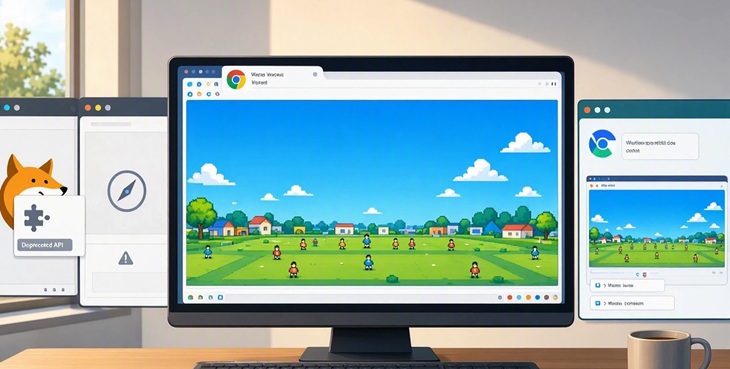
A browser game may run smoothly in Chrome but fail to open in Firefox, Safari or another browser. Sometimes the game loads, but its buttons stop responding, the sound disappears or the screen remains blank.
This does not always mean the game is broken. Browser games rely on web standards, graphics technologies, browser engines and security settings, and these can behave differently across browsers.
That is why a game that works in Chrome may not deliver the same experience elsewhere.
One of the biggest reasons is the technology underneath the browser.
Chrome and other Chromium-based browsers use the Blink rendering engine. Firefox uses Gecko, while Safari relies on WebKit.
These engines interpret and run web content, but they are not identical.
For most ordinary websites, those differences are barely noticeable. Games can be less forgiving because they often rely on precise combinations of:
JavaScript
HTML5 APIs
Canvas
WebGL
Web Audio
WebAssembly
Storage features
Networking APIs
If a game depends on a feature that behaves differently between browsers, the player may notice the difference immediately.
This is a practical issue rather than a browser rivalry. Developers have limited time and devices to test. If most of their audience uses Chrome, they may spend more effort making sure the game works there first.
Browser engines: Chrome generally uses Blink, Firefox uses Gecko, and Safari uses WebKit. However, browser-engine choices can vary by platform and regional requirements, so avoid implying that every browser always uses the same engine on every device.
Graphics support: WebGL and WebGPU support depends on the browser, operating system, device hardware, drivers and enabled features. A blank screen can also result from a JavaScript error or a blocked resource, so it should not automatically be attributed to graphics.
That does not necessarily mean they intentionally ignore other browsers.
A smaller game might simply have been tested on:
Chrome on Windows
Chrome on Android
Chrome on macOS
while fewer tests were performed on Firefox, Safari or other browsers.
A problem can remain hidden until players discover it.
Many modern HTML5 games use browser graphics technologies such as WebGL. Newer experiences may also take advantage of WebGPU.
The important detail is that support is not always identical across browsers, operating systems and hardware.
Even when a browser technically supports a graphics feature, the actual result can depend on the device's GPU and drivers.
This can lead to situations where:
Chrome: Game loads normally
Another browser: Graphics fail, become unstable or fall back to a slower method
That is particularly noticeable in games with 3D graphics or demanding visual effects.
JavaScript is at the heart of many browser games.
Developers use it for controls, menus, animations, game rules, scoring and communication with servers.
Modern browsers are generally very good at running JavaScript, but browser-specific behavior and differences in supported APIs can still cause trouble.
A poorly handled browser difference might result in:
A button doing nothing
A menu failing to open
The game stopping during loading
Missing animations
An error that players never see
Sometimes the game itself needs a compatibility fix rather than the player needing to change their device.
This is one of those problems that can be surprisingly difficult to spot.
Browsers increasingly give users control over cookies, storage, permissions, tracking and other forms of website access.
A game may depend on browser storage to remember settings or use particular permissions for features such as audio or fullscreen mode.
If one browser blocks something that another allows, the game can behave differently.
Private browsing modes, strict tracking protection and content-blocking extensions can also change how a webpage operates.
Ad blockers and privacy extensions are useful, but occasionally they interfere with web games.
A game page might rely on a script that an extension mistakenly blocks. The player then sees a broken game and assumes the browser is incompatible.
Before giving up, try opening the game in a private window or temporarily testing it without unnecessary extensions.
If it suddenly works, you have a useful clue.
It is also possible that you are comparing different browser versions rather than browsers themselves.
Web technologies continue to evolve. Developers may build games using newer APIs, while an older browser may lack support or contain an earlier implementation.
Keeping your browser updated is therefore one of the simplest compatibility checks.
If a game fails in one browser, check:
Is the browser updated?
Does the game work in a private window?
Are extensions interfering?
Does disabling strict privacy settings change anything?
Does the same game work on another device?
These quick tests can narrow down the cause.
If a browser game works in Chrome but not another browser, try these steps:
Update the browser. Install the latest available version to get relevant compatibility fixes and web-feature support.
Reload the game. Refresh the page and wait for the game to finish loading.
Test a private window. This can help identify extension or session-related issues, although private browsing may apply stricter storage restrictions.
Check extensions. Temporarily disable ad blockers or script-blocking extensions for the game site if you trust it.
Review browser settings. Check whether privacy settings, cookies, site storage or content restrictions are preventing the game from working.
Check sound and fullscreen settings. Make sure the game is not muted and that the browser or operating system is not blocking the requested feature.
Try another device or browser. If the game works elsewhere, the issue may be related to the original browser, its settings or the device environment.
What You See | Possible Reason |
No sound | Audio permission or browser setting |
Game loads but controls fail | Script/API compatibility |
Blank game screen | Graphics or JavaScript issue |
Login doesn't work | Cookies or storage restrictions |
3D graphics look wrong | WebGL/GPU issue |
Game works after disabling extensions | Extension interference |
Good browser-game development involves more than making the game work on one machine.
Developers can improve compatibility by:
Testing major browsers
Providing fall backs for unsupported features
Detecting browser capabilities before starting the game
Keeping JavaScript and graphics code efficient
Watching error reports from real players
Testing on both desktop and mobile hardware
Feature detection is particularly useful. Instead of assuming a browser supports something, the game can check first and choose an appropriate alternative when possible.
Not necessarily.
Chrome may appear to work better for a particular game simply because that game was developed, tested or optimized more heavily around Chromium-based browsers.
Another game could perform better elsewhere.
The important lesson is that a browser game is not running in isolation. It sits on top of a browser engine, operating system, graphics hardware, security settings and network environment.
When everything lines up, the experience feels effortless. When one part does not, the game can suddenly refuse to cooperate.
So if a game works perfectly in Chrome but fails in another browser, don't immediately assume your device is the problem. Try updating the browser, checking extensions and privacy settings, and testing another device.
Sometimes the fix is only a setting away. And sometimes, the developer simply needs to make the game a little more-friendly to browsers outside its original testing environment.
Yes. Ad blockers, script blockers and privacy extensions can occasionally prevent game components from running correctly.
Some games are tested more extensively on Chromium-based browsers, so compatibility issues may be discovered and fixed there first.
Safari supports many modern web technologies, but individual games can still encounter compatibility issues depending on the APIs, graphics features and code they use.
Trying another updated browser is a useful troubleshooting step. If the game works elsewhere, you have a strong indication that the issue is browser-specific rather than a general device problem.
It can. An update may include support for newer web features, bug fixes or improvements that affect game compatibility.
Atmegame.com is a completely new platform for the online games lovers.The best part is that all games available on our website are free and can be enjoyable on multiple devices, including desktop, mobile phones, tablets, and iPhones or iPads.
