



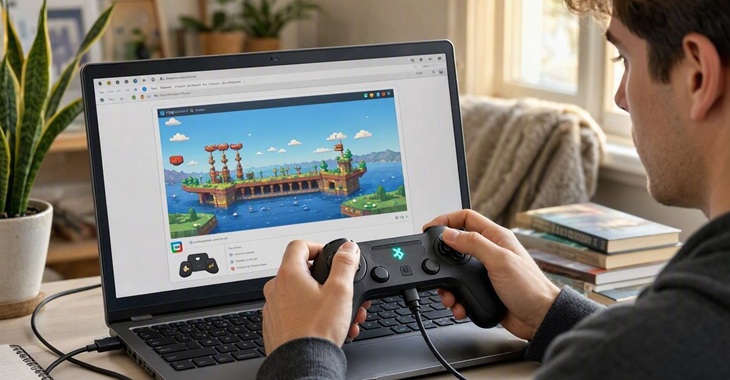
Can You Play HTML5 Games with a Gaming Controller?
Yes, you can play many HTML5 games with a gaming controller, but there is one important catch: the game itself needs to support controller input. Simply connecting an Xbox, PlayStation or other compatible gamepad to your computer does not automatically make every browser game work with it.
For players who enjoy browser gaming, this is actually good news. Modern web technology has made it possible for developers to build games that respond to physical controllers instead of relying only on a keyboard, mouse or touchscreen. The browser's Gamepad API has been widely available for years and lets web games detect buttons, analogue sticks and other controller inputs.
How Does a Controller Work with an HTML5 Game?
The process is fairly simple from a player's point of view.
Connect your controller, open a supported browser game and press a button or move an analogue stick. If the game has been programmed to recognise the controller, it can receive those inputs and translate them into actions.
Developers can use the Gamepad API to detect:
Button presses
Analogue-stick movement
Trigger input
Controller connection and disconnection
Different gamepad layouts
The browser exposes this information to the game's JavaScript, allowing the developer to decide what each button should do.
So, unlike older browser gaming setups that sometimes depended on additional plugins, modern HTML5 games can communicate with supported controllers through standard web technology.
But Not Every HTML5 Game Supports Controllers:
This is where many players get confused.
HTML5 describes the technology used to build the game; it does not mean every HTML5 game automatically supports every type of input.
A simple puzzle game may have been created entirely around mouse clicks. Another game might be designed for touchscreens. A racing game, platformer or action title may offer proper gamepad controls.
Before buying a controller specifically for browser gaming, check the game's control settings or instructions.
A useful rule is:
Controller compatibility depends on the game as much as it depends on the controller.
Which Games Benefit Most from a Controller?
Not every browser game needs one.
For a card game or basic puzzle title, using a controller could actually make things less convenient. But physical controls can be much more useful when the game demands quick movement or several inputs at once.
Game Type | Controller Usefulness | Why |
Strategy | Low–Medium | Mouse may be easier |
Card games | Low | Simple clicking works well |
Puzzle games | Low | Touch or mouse is often enough |
Arcade games | High | Fast physical input |
Action games | High | Multiple buttons are easier |
Platformers | High | Better movement and timing |
Racing | High | Analogue steering and triggers |
For me, racing and platform games are where the difference is easiest to notice. A touchscreen or keyboard can get the job done, but a proper analogue stick and triggers feel much more natural.
What Controllers Usually Work?
There isn't one controller that every browser game prefers.
Many common console-style controllers can work with the Gamepad API, but support can vary between browsers, operating systems and individual controllers. MDN also notes that controller features can behave differently depending on the particular platform and device.
That means a controller working perfectly with one browser game doesn't guarantee an identical experience elsewhere.
The safest choice is generally a controller with a standard button layout, especially if the game displays familiar Xbox-style or PlayStation-style controls.
What If the Buttons Are Wrong?
This is another issue you might encounter.
You connect the controller and the game recognises it, but the buttons don't match the instructions.
For example, the game might show one button for jumping while your controller triggers something else.
This can happen because different controllers can expose different layouts. The Gamepad API includes a standard mapping concept, but developers still need to handle controller inputs properly.
If the game offers controller remapping, use it. If not, you may need to experiment with the controls or switch to another supported device.
Do You Need Special Software?
Usually, no additional browser plugin is required when the game uses the Gamepad API.
That is one of the nice things about modern browser gaming. The browser can expose controller information directly to the web game.
However, the exact experience depends on your operating system, browser and controller.
If a game doesn't detect your controller:
Make sure the controller is connected before launching the game.
Click inside the game window.
Press a controller button.
Try another supported browser.
Check the game's own control settings.
Test the controller with another browser game.
Modern browser implementations can detect a connected gamepad when the relevant page is focused, and in some cases user interaction with the controller is required before the page receives the connection information.
Can You Use a Controller on Mobile HTML5 Games?
This is a little more complicated.
Some phones and browsers can work with external controllers, but compatibility isn't as predictable as on a desktop setup. The game, mobile operating system, browser and controller all need to cooperate.
For mobile browser gaming, therefore, I wouldn't buy a controller assuming every HTML5 title will support it.
If you already own a compatible controller, however, there is little harm in testing it.
A Simple Test Before You Start Playing:
If you're unsure whether an HTML5 game supports a controller, don't spend ten minutes changing settings.
Try this:
1. Connect the controller.
Use USB or Bluetooth, depending on your device.
2. Open the game.
Make sure the browser tab containing the game is active.
3. Press a button.
Try moving an analogue stick as well.
4. Check the controls.
Look for a controller icon, gamepad settings or button prompts.
5. Start playing.
If the character responds correctly, you're ready.
If nothing happens, the game may simply have been designed for keyboard, mouse or touch input.
Is a Gaming Controller Worth It for HTML5 Games?
That depends on what you play.
If your browser gaming mostly consists of simple games, you probably don't need one. A mouse and keyboard can be faster and more convenient.
But if you regularly play racing, platform, arcade or action-based HTML5 games, a controller can make the experience considerably better.
The bigger point is that browser gaming is no longer limited to clicking buttons with a mouse. The Gamepad API gives developers a straightforward way to bring console-style controls to web games, and the technology is now well established across modern browsers.
Final Take:
Yes, HTML5 games can be played with a gaming controller—but only when the game has been built to support controller input.
That's the part worth remembering.
You don't need an expensive controller or complicated software to experiment with browser gaming. Start with the controller you already have, check whether your favourite games recognise it and see how the controls feel.
For the right type of game, those physical buttons and analogue sticks can turn a basic browser session into something that feels surprisingly close to playing on a console.